Stand-alone DNS Records

This page contains information about creating and managing stand-alone DNS records.

Introduction

We use the term “stand-alone” to refer to any standard DNS record type (A, AAAA, CNAME, MX, SRV, TXT, etc) which does not have special proprietary behavior in Grid Manager.  There are many different types of stand-alone records, but the steps for managing them are very similar; we will discuss a few of the most common ones.

This page does not contain many screenshots, but some of the screenshots from the Host Records page may also be helpful here.

Stand-alone A Records

An address (A) record maps a fully-qualified domain name to a single IPv4 address:

www.example.com. IN A 198.51.100.17

Publishing multiple A records for the same name is legal and results in “round-robin DNS” behavior.

Best practice: use stand-alone A records only when you need an A record with no matching PTR (see below for further discussion). If you want a matching pair of A and PTR records, create a Host Record instead.

To create a stand-alone A record (with no matching PTR):

  1. Open the DNS Zone in which you want to create the new record (see Getting Started with IPAM).
  2. Click the dropdown arrow next to the Add (+) icon above the table in the main workspace, then choose “Record” and finally “A Record”.

  3. If necessary, click the “Select Zone” button and choose the zone which will contain the desired fully-qualified domain name (e.g. to create “myrecord.sandbox.illinois.edu”, you would select the zone “sandbox.illinois.edu”).
  4. Type the leading portion of the Name (e.g. “myrecord“) into the text box to the left of the selected zone name, so that both pieces together form the desired fully-qualified domain name.
    • You may leave this text box empty to create a record with the same name as the zone itself (e.g. “sandbox.illinois.edu”).
    • You may type e.g. “foo.bar” in the text box to create a record named “foo.bar.sandbox.illinois.edu” even if there is no zone “bar.sandbox.illinois.edu”.
    • You may type “*” or e.g. “*.bar” in the text box to create a record with a wildcard domain name (see RFC 4592).
  5. Enter the target IP Address to which your A record should resolve.
  6. Important: UNCHECK “Create associated PTR record”

    If you do want a matching PTR, you should Cancel this operation and create a Host Record instead.  Leaving this box checked creates a stand-alone A record and a separate stand-alone PTR record, which is undesirable because they can easily get out of sync in the future.
  7. Click “Save & Close”.

AAAA records are exactly like A records, but they target IPv6 addresses instead of IPv4 addresses.

www.example.com. IN AAAA 2001:db8::17

When should I use stand-alone A records?

Use stand-alone A (and AAAA) records when you do not want a matching PTR record.

Common reasons for this include:

  • the IP address already has a PTR record pointing to a different fully-qualified domain name
  • the IP address belongs to a network whose reverse-mapping DNS is not managed in IPAM

Otherwise, it is preferable to use Host Records (which automatically manifest as matching pairs of A/AAAA and PTR records).

Note that it is best practice to avoid creating multiple PTR records for the same IP address.  While not technically an error, this may cause problems for software which expects reverse lookups to return a single name (an expectation subtly encouraged by language such as “primary” and “the host name” in https://tools.ietf.org/html/rfc1035#section-3.5).

When you want several fully-qualified domain names (FQDNs) to resolve to the same IP address, the recommended best practice is:

  1. Create a Host Record for the FQDN that you consider to be primary.
  2. Where possible, implement each additional FQDN as a Host Alias or stand-alone CNAME record pointing to the primary FQDN.
  3. Create a stand-alone A record with no PTR for each additional FQDN which cannot be implemented as a CNAME record.

Example: Host Record for server17.mysubdomain.illinois.edu, stand-alone CNAME records (pointing to server17.mysubdomain.illinois.edu) for www.mysubdomain.illinois.edu and www.example.com, and stand-alone A records (pointing to the same IP as the Host Record) for mysubdomain.illinois.edu and example.com (which cannot be implemented as CNAME records since each resides at the apex of a zone).

MX Records

A mail exchanger (MX) record indicates the fully-qualified domain name of a mail server which can accept incoming email messages for a domain:

illinois.edu. IN MX 10 incoming-relays.illinois.edu.

Note that successful use of this record also entails resolving A (and/or AAAA) records for the mail server name.

When creating an MX record:

  • In the “Mail Exchanger” field, enter the target fully-qualified domain name of the mail server to which the MX record should point.

    Per RFC 2181, the target of an MX record MUST NOT be an (explicit) alias (i.e. a Host Alias or CNAME record).  You are responsible for following this rule; it is not enforced automatically.
  • In the Preference field, enter a priority value for this record. (10 is selected by default)

TXT Records

A text (TXT) record provides the ability to associate arbitrary text with a domain name.  Each TXT record may contain one or more strings (each limited to 255 characters).  Interpretation of the record data is context dependent.

When creating a TXT record:

  • In the Text field, enter all desired strings with enclosing double quotes, e.g.
    "one two" " three"

    for a value of two strings, each containing one embedded space character.

  • If you enter one two three without double quotes, Grid Manager will treat it as "one" "two" "three" (i.e. three strings with no embedded space characters).

TXT records can be used for many purposes, including but not limited to SPF email authentication.

Stand-alone CNAME Records

A CNAME record defines a static, explicit alias in the DNS which affects query behavior for all record types:

www.illinois.edu. IN CNAME illinois.edu.
  • Query: www.illinois.edu. IN A?
    Answer:

    www.illinois.edu. IN CNAME illinois.edu.
    illinois.edu.     IN A     192.17.172.3
  • Query: www.illinois.edu. IN MX?
    Answer:

    www.illinois.edu. IN CNAME illinois.edu.
    illinois.edu.     IN MX    10 incoming-relays.illinois.edu.

Common points of confusion:

  • This CNAME record helps your browser find the IP address of a web server for www.illinois.edu.  It does not tell your browser to redirect HTTP requests for http://www.illinois.edu/ to a different URL (only the web server itself can do that).
  • A CNAME record cannot coexist with other records (e.g. no other records are permitted at www.illinois.edu)

    RFC 1034: “If a CNAME RR is present at a node, no other data should be present; this ensures that the data for a canonical name and its aliases cannot be different.”

    A few special record types for DNSSEC are exempted by later RFCs.

  • A CNAME record cannot be placed at the apex of a zone (e.g. illinois.edu).

    This follows from the previous point, because the apex of a zone is required to have NS and SOA records.

  • CNAME stands for “canonical name”, but that term (correctly applied) refers to the target name, not the alias name.  Best practice: use the terms “alias” and “target” to avoid confusion.

To create a stand-alone CNAME record:

  1. Open the DNS Zone in which you want to create the new record (see Getting Started with IPAM).
  2. Click the dropdown arrow next to the Add (+) icon above the table in the main workspace, then choose “Record” and finally “CNAME Record”.

  3. If necessary, click the “Select Zone” button and choose the zone which will contain the desired fully-qualified domain name of the alias (e.g. to create “myalias.sandbox.illinois.edu”, you would select the zone “sandbox.illinois.edu”).
  4. Type the leading portion of the Alias name (e.g. “myalias“) into the text box to the left of the selected zone name, so that both pieces together form the desired fully-qualified domain name.
    • You may type e.g. “foo.bar” in the text box to create a record named “foo.bar.sandbox.illinois.edu” even if there is no zone “bar.sandbox.illinois.edu”.
    • You may type “*” or e.g. “*.bar” in the text box to create a record with a wildcard domain name (see RFC 4592).
  5. In the “Canonical Name” field, enter the target fully-qualified domain name to which the alias should point.

    The target of a CNAME record should not be another (explicit) alias.  So-called “CNAME chains” are not technically an error, but create inefficient behavior and are discouraged as a bad practice (see RFC 1034 sections 3.6.2 and 5.2.2).

  6. Click “Save & Close”.

When should I use stand-alone CNAME records?

A Host Alias is functionally equivalent to a stand-alone CNAME record pointing to the Host’s primary FQDN, but carries trade-offs with respect to ease of future maintenance.  Which option is preferable depends on the situation.

Advantages of using a Host Alias:

  • A Host Alias will automatically be kept up to date if you change the Host’s primary Name, whereas a stand-alone CNAME record will be left “dangling” if the target Host record is renamed or deleted.

Advantages of using a stand-alone CNAME record:

  • Modifying an existing stand-alone CNAME record to point to a different target is a simple one-step operation.  The corresponding process for a Host Alias requires editing the old Host (to remove the Host Alias) and then editing the new Host (to add the Host Alias).
  • If a Host Alias resides in a different zone (from the primary Name of the Host) which is not managed by the same set of people, the disparity in permissions may impede self-service changes to the record (possibly requiring an escalation to hostmgr).  A stand-alone CNAME record presents no such problem; it is governed by the permissions on the zone containing the alias name, while any target record(s) are governed by the permissions of the zone containing the target fully-qualified domain name.

    Best practice: always use a stand-alone CNAME record in the case where the desired alias name and the canonical (target) name reside in different zones which may not be managed by the same set of people.

Stand-alone PTR Records

A PTR record is a pointer to another fully-qualified domain name.  PTR records (unlike CNAME records) are simple data; they do not alter DNS behavior, may coexist with other records, and have no inherent special meaning.  Their significance is understood by convention from where they are placed in the namespace (e.g. “17.100.51.198.in-addr.arpa” is understood to represent the IPv4 address 198.51.100.17).

PTR records are most commonly used for reverse-mapping DNS (i.e. mapping from an IP address to a fully-qualified domain name).  In general, you should never create a stand-alone PTR record in IPAM for this purpose; instead, create a Host Record which will automatically manifest as matching pairs of A (or AAAA) and PTR records.

The rare exception to this rule occurs when you specifically need a PTR record for reverse-mapping DNS to point to a fully-qualified domain name whose forward-mapping zone is not managed in IPAM.

If you do need to manage stand-alone PTR records for reverse-mapping DNS, just Open the Network in IPAM View (see Getting Started with IPAM); it is not necessary to navigate the arpa zones.

Stand-alone PTR records in forward-mapping DNS zones (used infrequently for other purposes such as DNS-SD) are not a special case, and can be managed just like the other types of stand-alone records described on this page.

Editing Stand-alone DNS Records

  1. Navigate to the record you want to edit (see Getting Started with IPAM).
  2. Select the checkbox for the record and click the Edit (notepad) icon above the table. This opens the Edit dialog box.
  3. Make any desired changes.
  4. Click “Save & Close”.

Deleting Stand-alone DNS Records

  1. Navigate to the record you want to delete (see Getting Started with IPAM).
  2. Select the checkbox for the record (making sure no other checkboxes are selected), and click the Delete (trash can) icon above the table.
  3. If you’re sure, click “Yes” when the confirmation dialog appears.

Requesting DNS Domains

Requesting New DNS Domains

Your group or organization is not limited to the domains that the University already has defined. We are able to host additional domains that fit the University mission, subject to the rules and requirements described in DNS Standards.

Use the Domain Request Form to request either an .edu subdomain (sample.illinois.edu or sample.uillinois.edu) or a new non-.edu domain (.org, .com, etc) for which you have a University-related need.

Naming Guidelines

Consult the Acceptable Name Guidelines to assist you in picking out names that conform to University policy.

To see if a non-.edu domain you want is available (prior to submitting your request), you can go to the  home page and search for it.

Please do not attempt to actually purchase the domain from Porkbun or any other registrar. The University host manager must be involved in the requesting of the domain in order for our DNS servers to provide the service.

Transferring an Existing Domain

To transfer an existing non-.edu domain to University ownership from another registrar:

  1. Contact the domain owner, and ask them to unlock the domain for transfer and provide you with the transfer authorization code.
    • If the domain is close to expiration, also consider renewing it with the current registrar now to ensure it will not expire before the transfer completes.
  2. Once you have the code, complete the Domain Request Form.  Note that you will need to provide:
    • the transfer authorization code
    • is the domain currently in active use, or is a lengthy disruption in service acceptable?

      If the domain is in active use, we will work with you to perform a seamless migration which ensures that live DNS queries for the domain continue to resolve without interruption, and with consistent answers, at all times during the transfer process.

      If you indicate that a lengthy disruption in service is acceptable because nothing actively depends on this domain right now, we can follow a simpler process which involves less work for both you and us.

  3. For seamless migrations, Technology Services will work with you to import the domain’s current zone data into our nameservers, and then ask you to update the NS records with the current registrar.

    It is important to migrate all of your domain’s DNS records (not just the address record for your website) unless you are certain that you don’t need them anymore.

    Once you have provided the current zone data, do not make any further changes to your DNS records until we confirm that it is safe to do so.

  4. To process your order, an authorization email will then be sent to the the current Administrative Contact of Record (as identified by WHOIS). The Administrative Contact must authorize the transfer within 14 days of receipt of the email. Once our registrar receives this authorization, your request will be submitted to the registry to finalize the transfer.
  5. If for some reason your transfer fails, we will notify you and work with you to retry the transfer. Common reasons why registrars will reject a transfer include:
  • Domain name is within 60 days of initial registration
  • Domain name is within 60 days of a previous transfer
  • No response/negative response to transfer authorization request to current Administrative Contact of RecordIf the transfer still does not succeed after all reasonable efforts have been made, Technology Services will provide at least 7 days notice before removing the zone from our nameservers, to allow you time to update your NS records again.

Please note: the transfer process can take up to two weeks from the time we initiate the transfer.

For other questions about transfers, please email hostmgr.

Automatic Renewals

Non-.edu DNS domains registered through Technology Services are automatically renewed by the registrar 45-90 days before they are scheduled to expire.

The Primary and Administrative contacts listed for the domain in Contacts Database will receive a notification email prior to each auto-renewal, but do NOT need to respond affirmatively in order for the auto-renewal to proceed (this eliminates unnecessary workflow steps for you and for us, and reduces the risk that a domain registration will unintentionally be allowed to lapse).

If you no longer wish to renew a non-.edu domain, please inform hostmgr at least 91 DAYS PRIOR TO ITS EXPIRATION DATE (or sooner if that deadline would fall on a non-business day) to ensure that the change can be processed before the next auto-renewal occurs.  Choose one of the following options:

  • Disable renewal but keep the domain in service until it expires.
  • Deactivate the domain immediately.

Note that removal requests should come from a Primary contact if possible (otherwise we will attempt to reconfirm with a Primary contact).

By choosing to disable renewal but keep the domain in service, you accept full responsibility for any disruption that may occur when the domain expires.  You will NOT receive any further notification from Technology Services when this is about to happen.  As a best practice, we recommend leaving automatic renewal enabled until you are actually finished using the domain.

Q: For how many years at a time will a non-.edu domain be renewed?
A: As of May 2026, Technology Services is gradually transitioning non-.edu domains to a new registrar in order to streamline our process and reduce your cost.  Domains held under the new registrar will automatically renew for one year at a time, regardless of the initial registration length, unless otherwise stipulated by top-level domain rules (for example, as of this writing .AI domains require a minimum term of 2 years for registration and renewals).  Any domain still under the old registrar (with a current expiration date during or before Sep 2026) will automatically renew for the same duration as its current term, i.e. a domain most recently purchased or renewed for 3 years will auto-renew for 3 years.

Q: Which CFOP will be billed for the renewal fee?
A: Each non-.edu domain has a CFOP on file which is billed $10 per year plus renewal fees equal to the amount that Technology Services pays the registrar (as specified in DNS Standards).  Contact hostmgr if you wish to change the CFOP to which your domain is billed.

Managing DNS for your Domains

Once your domain has been created, you can use IPAM to create and modify most types of DNS records; see Using IPAM for detailed instructions.

Other Information

DNS Basics (KB#47914) is written for a general audience, and briefly explains what a DNS server is used for and which IP addresses are used for the campus DNS servers.  Note that most users will not ever need to change their computers’ DNS settings.

DNS Standards contains information about implementation details related to the campus domain registration policy.

Known Issues

This page summarizes known issues with IPAM Grid Manager that may be relevant to campus network administrators.

  • Even though they both ultimately derive from the same Active Directory user object, Grid Manager regards `yournetid` (the SAML identity that you use for SSO Login) and `yournetid@illinois.edu` (the userPrincipalName identity that you use for API access and the optional Alternative Login Method) as two separate users who happen to have the same permissions.
    This has the following practical consequences:
    • Each user profile has its own independent set of GUI personalizations, so e.g. Smart Folders or table customizations you create for your SSO Login identity will not be visible when you log in with your userPrincipalName identity (nor vice versa).  This can be a confusing user experience, especially if you frequently switch back and forth, so our general recommendation for most people is to always access the GUI using “SSO Login”.
    • User profile settings, Smart Folders, Scheduled Tasks, etc that belong to your SSO Login identity cannot be managed using the API.
    • Here is a partial (not exhaustive) list of user profile customizations you may wish to consider manually recreating when you switch login methods:
      • (your username in upper-right corner) > Profile: Table Size
      • Finder > Smart Folders
      • Finder > Bookmarks
      • column customizations for various tables (e.g. adding “Network Name” to both Data Management > IPAM and Data Management > DHCP > Networks > Networks)
      • saved Quick Filters for various tables
      • “Toggle Advanced Mode” in various dialog boxes
      • “Toggle flat view” in Data Management > DNS > Zones > Records
      • “Include Extensible Attributes Values” in Search > Advanced

Discovered Data

  • Please avoid using the “Ping” (and “Multi-Ping”) toolbar buttons within IPAM.  Successful pings have the side effect of storing “Discovered Data” for the IP which unfortunately cannot be cleared using normal permissions; it must be cleared by hostmgr (or a nightly automated script) on your behalf.  This Discovered Data can inconvenience you in several ways, including manifesting visually in IPAM as a purported “conflict” or “unmanaged” address, and/or preventing you from creating a Range.

Leases

  • In IPAM view (Viewing Leases in a Network), “Static” Leases from Fixed Addresses or DHCP-enabled Hosts are only displayed if the IP in question happens to fall within a DHCP Range.
  • Depending on your individual network permissions, some users may experience a significant delay and eventual timeout when clicking on the Current Leases tab.  The text of the error message is:
    “The system is taking longer than expected to complete your request. The system will continue to process any changes you made in the background. Please wait, then check whether your changes were applied. If you did a search, please refine your query and retry your request.”
    Workarounds:
    • wait for it to time out, then apply a Filter (e.g. “IP Address” “begins with” …) to limit the scope of the query
    • use one of the other two methods described in Managing DHCP Leases instead
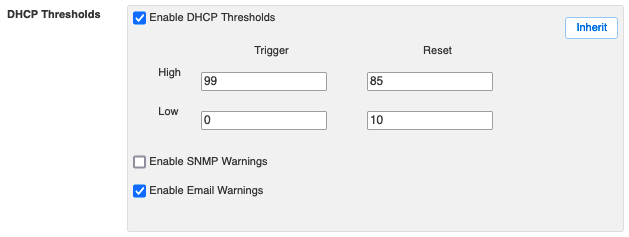
  • Grid Manager does not appropriately account for Abandoned Leases when calculating the DHCP utilization statistics (per Range and per Network) which are shown in Grid Manager, returned by the API, tracked by dhcpmon, and used to trigger DHCP Threshold Email Alerts.  For example, a Range which contains 90% Active Leases and 10% Abandoned Leases will not generate an alert because Grid Manager considers it to be only 90% utilized, even though live clients may be unable to obtain a lease (depending on how many of the Abandoned Leases are actually still in use on the network).
    Workarounds:
    • dhcpmon has been enhanced to display the most recent Abandoned lease count per network (data updated once per day)
    • hostmgr now receives automated notifications regarding networks which are over 95% full including Abandoned leases, so we can manually reach out to CDB network contacts to let them know when this problem has become serious
  • Addresses within Reserved Ranges are counted (along with DHCP Ranges) in the per-Network DHCP Utilization statistics shown in Grid Manager, returned by the API, and tracked by dhcpmon.  Consequently, the presence of Reserved Ranges may cause a network to appear less full than it actually is.  This does not affect Email Alerts (which apply individually to each Range).
    • Workaround: Edit the Reserved Range and check “Disable for DHCP”.

Search

  • Basic Search for DNS Name does not currently find Host Aliases.
    • Workaround: use Advanced Search with Type equals All
  • Advanced Search for an IPv6 address will only succeed if you enter the exact string representation of the address that Grid Manager uses internally.  For example, you will not find 2620:0:e00:b::53 by searching for “2620:0000:0e00:000b::53” (extra leading zeros) or “2620:0:e00:b:0:0:0:53” (no double colon abbreviation), even though these are all valid representations of the same IPv6 address.
    • Workaround: use Basic Search by IP Address instead.

DNS Traffic Control

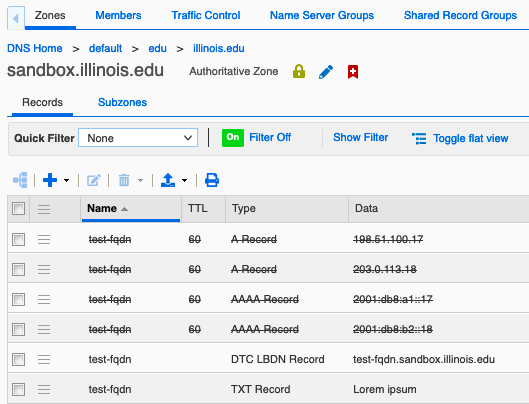
  • DNS Traffic Control may return your fallback records (instead of synthesized responses) for about 1 second after a restart of services in which other DTC configuration changes are being applied, even if those changes have nothing to do with your LBDN.  Mitigation: choose good fallback records.

Misc

  • Due to shared implementation logic under the hood, if you try to create a Fixed Address with MAC address 00:00:00:00:00:00, IPAM will silently create a “Reservation” object instead.  This is especially confusing because there is no way to convert a “Reservation” back into a Fixed Address later on; it must be deleted.
    • Workaround: if you need a dummy placeholder MAC address, consider using one that begins with “02:” (a valid prefix for locally administered addresses).

Other Tools

This page contains information about other DNS and DHCP tools available to campus IT professionals.

Production IPAM

Production IPAM Grid Manager is located at https://ipam.illinois.edu/

See Using IPAM for instructions.

Development IPAM

The development IPAM system located at https://dev.ipam.illinois.edu/ is a good place to safely experiment with new CSV imports, API scripts, or interface features you haven’t used before. Please note that we enable IT Pros to use dev.ipam on an “as is” basis, with the important caveats that it is not always available, often contains data that is inaccurate or extremely out of date, and may be completely overwritten at any time without warning.

dev.ipam is not reachable from off-campus, so you may need to use the VPN.

The following dummy objects exist only in dev.ipam, with permissions granted to all users for training purposes:

  • sandbox.illinois.edu
  • 192.168.0.0/26 (sandbox-net)
  • 2001:db8::/64 (sandbox-net)
  • sandbox-macfilter

Test authoritative DNS queries sent to dns-dev1.techservices.illinois.edu (from on campus) will be answered using the data configured in dev.ipam:

dig +norecurse @dns-dev1.techservices.illinois.edu foo.sandbox.illinois.edu a

dhcpmon

dhcpmon provides graphs for each subnet showing the utilization of dynamically-allocated DHCP addresses over the past day, week, month, and year.

Please note the following limitations:

  • actual usage data may be up to 15 minutes older than the graph timestamp
  • abandoned lease counts are updated only once per day
  • addresses from multiple Ranges are aggregated together
  • unused addresses within Reserved Ranges are misleadingly counted as available even though in fact they can never be assigned to a DHCP client (see also Known Issues)

In general, dhcpmon works well for the common case of nets containing a single DHCP Range (with optional Exclusion Ranges).  If your net contains multiple DHCP Ranges and/or any Reserved Ranges, be very careful when drawing conclusions from dhcpmon data.

Domain Request Form

The Domain Request Form is located at go.illinois.edu/domainrequest

See Requesting DNS Domains for more information.

Contacts Database

Network administrators can now keep their identities up to date using Contacts Database.

dig

dig is the preferred client tool for troubleshooting DNS issues because of its flexibility and detailed output. This section is intended as a quick-start guide to help you get it running on your workstation.

See also https://help.dyn.com/how-to-use-binds-dig-tool/

Windows:

  1. Browse to https://downloads.isc.org/isc/bind9/9.16.50/ and download the last stable release of BIND 9 as a Windows zip file (e.g. BIND9.16.50.x64.zip).
  2. Extract the zipfile’s contents to a temporary directory on your workstation.
  3. Run BINDInstall.exe and choose the “Tools only” option (since you don’t want to install the BIND server on your workstation).
  4. Open a Command Prompt and run dig from the directory where you installed it, e.g.
    cd "C:\Program Files\ISC BIND 9\bin"
    dig

    Note that previous versions installed dig under C:\WINDOWS\system32\dns\bin or C:\WINDOWS\SysWOW64\dns\bin

  5. Optionally, you may add the above bin directory to your PATH for convenience (the details of this step are outside the scope of this document, but try searching the web for “set windows path”).

Mac OS X:

  • Modern versions of OS X come with dig pre-installed. Just open a Terminal window and run dig.

Linux:

  • dig is readily available as a package for most linux distributions. Look for a package called “bind-utils”, “dnsutils”, or “dnstools”.

To test that your installation of dig is working, run a simple query:

dig @8.8.8.8 www.illinois.edu a

This should return the IP address of our web server (in the ANSWER section).

Plenty of other documentation has already been written about the details of working with dig; just search the web for “dig tutorial”.
See also the dig manual page.

Host Manager

If you have questions about campus DNS services, email hostmgr@illinois.edu.

Using IPAM

This page contains information about using IPAM Grid Manager to manage DNS and DHCP configuration.

Introduction

IPAM, which stands for “IP Address Management”, is the integrated platform used by IT professionals to manage DNS and DHCP configuration for their networks and authoritative zones served by campus DNS and DHCP.

The user interface for IPAM is called Grid Manager.

How do I gain access to IPAM?

IT Professionals listed in Contacts Database with the “DNS Requests” permission for one or more network(s) and/or domain(s) may log in to IPAM Grid Manager and make changes to objects and records within those network(s) and domain(s).

The preferred way to obtain Contacts Database permissions for an existing network or domain is to contact the person responsible for that network or domain and ask them to grant you permissions.  If you cannot identify this person, feel free to contact hostmgr@illinois.edu for help.  Please note, however, that bulk permission change requests should be submitted to the Contacts Database team via consult@illinois.edu.

Updated permissions in Contacts Database are automatically read and imported into IPAM nightly.

Note that this nightly job currently takes a long time to run, typically (as of Nov 2021) finishing all its work in IPAM by 11am on the following day.

Employees with a home campus other than Urbana must have an account in the Urbana UofI Active Directory in order to access IPAM.

About Contacts Database

Contacts are the people (or distribution lists) who should be informed when problems or questions arise regarding this network or domain:

  • The Primary contact is the technical person who has operational (day-to-day) responsibility for the item and will be contacted first regarding any questions or problems.
  • The Backup contact will be contacted if the Primary contact is unavailable or does not respond.
  • The Administrative contact is managerial rather than technical (typically a department head or business manager), representing the unit that owns the item and pays for it (where applicable).  They will be contacted for help re-establishing Primary and Backup contacts if the ones listed are out of date or not responding.
  • You may list more than one Primary, Backup, or Administrative Contact.
  • Please list at least two Primary/Backup contacts (i.e. two Primary or one of each) and at least one Administrative contact.
  • Please do NOT list the same person in multiple contact roles.
  • You may also list contacts of type “Other” who are allowed to view the item in Contacts Database but who will generally not be contacted with questions about it.
  • To avoid confusion, don’t use the Service-specific contact types “Service Owner” and “Service Liaison” for Networks and Domains.  (If these are present, we will treat them as type “Other”.)

Permissions identify the Active Directory users (or groups) who are allowed to manage this network or domain:

  • Change Contacts permission-holders can update the information in Contacts Database (which includes granting and revoking permissions), and are expected to keep this information up to date as people leave the University, change jobs, etc.
  • DNS Requests permission-holders can perform self-service tasks in IPAM Grid Manager and request non-self-service changes from hostmgr@illinois.edu.  Note that requests for certain major irrevocable changes such as deactivating a domain or transferring it to another owner will be reconfirmed with a Primary contact (unless originated by a Primary contact).
  • Networks in CDB may also have other types of permission which are used to manage access to other services.

Note that Contacts and Permissions are entirely separate concepts; it is common to grant Permissions to the same people who are Contacts, but not required.

See Contact Types in Contacts Database (CDB) for more information.

How do I log in?

Visit https://ipam.illinois.edu and click the “SSO Login” button (without entering anything in the text boxes) to authenticate using Shibboleth single sign-on.

When the Shibboleth identity provider redirects you back to IPAM, you will be automatically logged in and should see a (fairly sparse) dashboard page.  If you instead end up back at the IPAM login screen, or if you see “Error: ‘Auto Create User’ option disabled, login denied”, this probably means you don’t currently have permissions to access IPAM (see How do I gain access to IPAM? above).

Technical notes:

  • The “SSO Login” button requires your browser to briefly connect to an additional non-standard HTTPS port (8765/tcp) on the Grid Manager server, which may not work if you are behind a firewall that restricts outbound connectivity.

Alternative Login Method

  • Multi-Factor Authentication (MFA) is still required.  IPAM is not able to prompt you interactively for a second authentication factor, but you can append a passcode or factor name to your password as documented in https://guide.duo.com/append-mode.

    If you don’t append anything to your password, you should automatically receive a push notification (if you have a smartphone registered for Duo).

    If you have more than one smartphone registered for Duo, you might need to append e.g. “,push2” to use your second device.

    If your actual password happens to contain any commas (the delimiter character for append mode), we suggest always appending something (e.g. “,push”) so that your authentication can succeed on the first try without requiring an extra round-trip to AD on the back end.

  • For UIC and UIS employees, be sure to enter the userPrincipalName of your Urbana UofI Active Directory account (typically yournetid@illinois.edu), not yournetid@uic.edu or yournetid@uis.edu

Your user profile for the Alternative Login Method will not reflect any customizations you have previously made while using SSO Login, nor vice versa.  See this known issue for details.

How do I log out?

Your Grid Manager session will automatically log out if it is idle for over 4 hours.  To log out manually, click the drop-down control labeled with your username in the upper right-hand corner of the interface, and select “Sign Out”.

In either case, logging out from IPAM does not end your Shibboleth identity provider session, which means you may still be able to click “SSO Login” and get right back in again.  You can prevent this by additionally visiting https://shibboleth.illinois.edu/idp/profile/Logout or by completely closing your web browser (see also Logging out of individual web applications with Shibboleth).

How soon will my changes take effect?

Many changes made in Grid Manager take effect instantly. Other changes (e.g. creating a DHCP Range) take effect only after a behind-the-scenes service restart, which will automatically occur within 5 minutes of making such a change.

Keep in mind that DNS records are routinely cached in accordance with their TTL (time-to-live) values.  Even though authoritative DNS record changes take effect instantly in IPAM, some clients may continue to see the old record data until it has expired from all caches.

For changes to high-profile DNS records (e.g. migrating a live production service), Technology Services recommends that you temporarily lower the TTL of the record in question (e.g. to 1 minute) at least one hour prior to making the actual change, and then restore the TTL to the campus default (1 hour) after the change is complete and you have confirmed that everything is working properly.

If you don’t want your changes to take effect immediately, see the section on Scheduled Tasks in Advanced Tips and Tricks.

Getting started and navigating the interface

New users should start at Getting Started with IPAM. This page contains basic information about navigating the Grid Manager web interface once you have logged in.

DNS Configuration Tasks

Host Records explains how to create, edit, and delete Host records.

Stand-alone DNS Records explains how to create, edit, and delete all other types of DNS records.

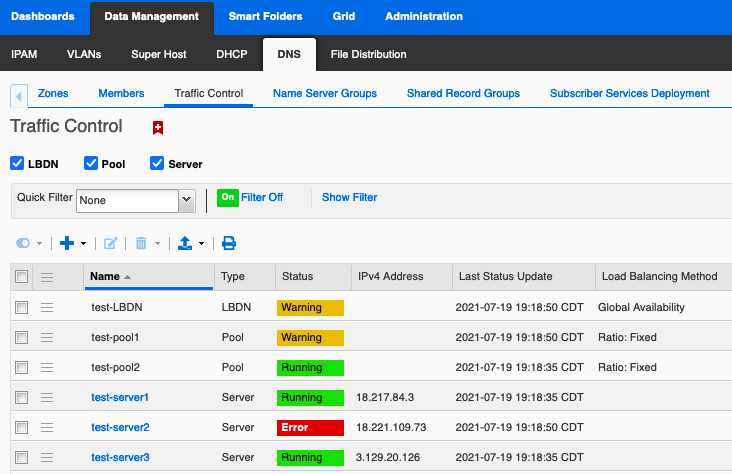
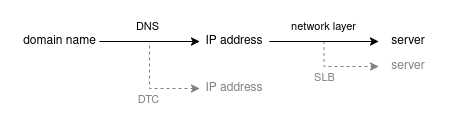
DNS Traffic Control explains how to dynamically adjust DNS query responses based on server health checks.

DHCP Configuration Tasks

DHCP Ranges (Dynamic Pools) explains how to configure a pool of IP addresses that can be assigned interchangeably to any eligible DHCP client.

DHCP Fixed Addresses explains how to configure an individual IP address for use exclusively by a single DHCP client.

Managing DHCP Leases contains information about working with leases, which represent the allocation of a particular IP address to a particular client for a specified period of time.

Advanced Features

Advanced Tips and Tricks contains some additional tips to help you use Grid Manager more efficiently. These tips will be most helpful to users who have already logged in once or twice and have familiarized themselves with the basics. If you’re just getting started with Grid Manager, we recommend you skip this section for now and come back to it later on.

CSV Imports and Exports gives instructions on how to to perform “bulk” updates which create or modify many DNS and/or DHCP objects at once.

Using the IPAM API contains information about using Grid Manager’s application programming interfaces.

Customized Training

If you’d like free, customized training for your particular unit or department about how to manage DNS and DHCP using Grid Manager, contact hostmgr@illinois.edu.

Known Issues

Known Issues contains information about known issues with Grid Manager that may be relevant to campus network administrators.

Host Records

Introduction

A Host record allows a single primary Name (fully-qualified domain name) to be associated with any of the following, managed collectively in Grid Manager as a single database object:

  • one or more IPv4 addresses, which manifest as matching pairs of A and PTR records
  • one or more IPv6 addresses, which manifest as matching pairs of AAAA and PTR records
  • one or more Host Aliases, which manifest as CNAME records pointing to the primary name
  • optional DHCP fixed address configuration for each IP address

    Note that publishing multiple A records for the same name (by adding more than one IPv4 address to a Host) or multiple AAAA records for the same name (by adding more than one IPv6 address to a Host) is legal and results in “round-robin DNS” behavior.

    Host records provide several advantages compared to managing an equivalent collection of Stand-alone DNS Records, the most important of which is that if you change one part of a Host record, the other parts will automatically update to stay in sync.

    The trade-off is that you must be VERY careful when deleting a Host record!

    Best Practice Recommendations:

    • In general, use Host records instead of stand-alone A, AAAA, and PTR records.
      • Exception: use stand-alone records when you do not want matching pairs (e.g. because the corresponding reverse-mapping DNS is not managed in IPAM).
    • Do not create multiple Host records for the same IP address.
    • Use stand-alone CNAME records instead of Host Aliases if the desired alias name resides in a different zone (from the primary name) which is not managed by the same set of people, or in general depending on your preference.
    • In general, use DHCP-enabled Host records instead of DHCP Fixed Addresses.

    For more information, see When should I use stand-alone A records? and When should I use stand-alone CNAME records?

    Managing a Host record requires DNS Requests permission on all relevant domains (for primary name and Host Aliases) and all relevant networks (for IPv4 and IPv6 addresses).

    Creating a Host record

    To create a new Host record:

    1. Open the DNS Zone which will contain the desired primary name.  (alternative: open a Network in IPAM View and select the desired IP address).  Opening Zones and Networks is described in Getting Started with IPAM.
    2. Click the dropdown arrow next to the Add (+) icon above the table in the main workspace, then choose “Host”, and finally “Host” again.

      screenshot

      This opens the Add Host dialog box. (alternative: in IPAM View click Add, then “Host”, then “New Host”)

    3. If necessary, click the “Select Zone” button and choose the zone which will contain the desired primary name (e.g. to create “myhost.sandbox.illinois.edu”, you would select the zone “sandbox.illinois.edu”).

      If you opened a DNS zone in the main workspace, it will be automatically pre-selected for you.

    4. Type the leading portion of the Name (e.g. “myhost“) into the text box to the left of the selected zone name, so that both pieces together form the desired fully-qualified domain name.

      screenshot

      • You may leave the text box empty to create a record with the same name as the zone itself (e.g. “sandbox.illinois.edu”).
      • You may type e.g. “foo.bar” in the text box to create a record named “foo.bar.sandbox.illinois.edu” even if there is no zone “bar.sandbox.illinois.edu”.
    5. If desired, add one or more IPv4 Addresses to your Host: click the drop-down arrow next to the Add (+) icon just above the IPv4 Addresses table and choose “Add Address” to place a new row in the table, then click the IPv4 Address field in that row and type the desired IPv4 address. Press return or click elsewhere when you are done typing.

      screenshot

      If you opened a Network and selected an IPv4 address in the main workspace, it will be automatically pre-populated for you.

    6. If desired, add one or more IPv6 Addresses to your Host.

      screenshot

    7. Add a comment in the “Comment” field (optional).
    8. Click “Next” at the bottom of the dialog window.
    9. If desired, add one or more Extensible Attributes (e.g. “Property Tag”).
    10. Click “Next”.
    11. If desired, you may schedule this change to occur at a later time instead of taking effect immediately (see Scheduled Tasks).
    12. Click “Save & Close” at the bottom of the dialog window.

    Editing a Host Record

    Before changing the primary Name of a Host record, it is advisable to perform a Basic Search by DNS Name for the current primary Name (fully-qualified domain name), in order to identify any Stand-alone DNS Records (CNAME, MX, etc) pointing to it.

    1. Navigate to the Host record you want to edit (see Getting Started with IPAM); you can find it either by name or by IP.
    2. Select the checkbox for the Host record and click the Edit (notepad) icon above the table.

      screenshot

      This opens the Edit Host dialog.

    3. Make any desired changes (several possibilities are discussed below).
    4. Click “Save & Close” at the bottom of the dialog window.

    Adjusting TTL

    For changes to high-profile DNS records (e.g. migrating a live production service), Technology Services recommends that you temporarily lower the TTL of the record in question (e.g. to 1 minute) at least one hour prior to making the actual change, and then restore the TTL to the campus default (1 hour) after the change is complete and you have confirmed that everything is working properly.

    To set a custom TTL for a Host record:

    1. Choose the “TTL” subscreen in the Edit dialog.
    2. Click “Override” next to the TTL value, and enter the new desired value (e.g. 1 Minute).

      screenshot

    3. Click “Save & Close”.

    When your high-profile change is complete, Edit the record again and click “Inherit” on the same TTL subscreen to resume using the campus default.

    screenshot

    You may find it helpful to add the TTL column to the table of Records in a Zone.  Note that this column only displays customized TTLs; it is left blank for records which inherit the default TTL.

    Adding Host Aliases

    A Host Alias is functionally equivalent to a stand-alone CNAME record which points to the Host’s primary Name, but carries trade-offs with respect to ease of future maintenance.  For more information, see When should I use stand-alone CNAME records?

    To add a Host Alias to a Host Record:

    1. Choose the “Aliases” subscreen in the Edit dialog
    2. Click the Add (+) icon to place a new row in the table, then click the Aliases field in that row and type the new fully-qualified domain name that should point to this Host.  Press return or click elsewhere when you are done typing.

      screenshot

    3. Click “Save & Close”.

    Enabling DHCP for Host addresses

    Enabling DHCP within a Host record is functionally equivalent to creating a stand-alone DHCP Fixed Address, but makes it easy to keep the DNS and DHCP configuration for a client in sync (in case you later decide to migrate the same client to a different IP address or retire it altogether).

    To enable DHCP for an IP address in a Host record (either while adding a new Host record or while editing an existing one):

    1. Click the DHCP checkbox to the right of the desired IP address.
    2. For IPv4 addresses: click the “MAC Address” field in that row and type the MAC address of the client that will use this IP.  Press return or click elsewhere when you are done typing.

      Click here to expand…

    3. For IPv6 addresses: do not use the “MAC Address” field as this option is not yet supported by most building routers on our campus.  Instead, click the “DUID” field in that row and type the DHCP Unique Identifier of the client that will use this IP (see also Limitations of DHCPv6 fixed address allocation).  Press return or click elsewhere when you are done typing.
    4. Optionally, you can also select the IP address using the checkbox to its left and then click the Edit (notepad) icon above the table to configure custom DHCP options that will apply only to this individual fixed address (but are otherwise similar to Setting DHCP Options for a Range).  Hint: don’t forget to enable Advanced Mode for the sub-dialog.
    5. Click “Save & Close”.

    Please note that your network must have autoconfiguration service appropriately enabled (see Requesting DHCP for Networks) in order for enabling DHCP within a Host record to have any effect.

    Displaying Host records in a Zone

    When displaying Records within a Zone (see Getting Started with IPAM), we recommend that you click “Toggle flat view” so that each manifestation of a Host record is displayed in its own table row.  After you click it, the link text changes to “Toggle hierarchical view”.  It should look like this:

    screenshot

    If you instead choose to display Records in hierarchical view, the Host record will appear only as a single row for the primary Name, and any Host Aliases in other zones will not be visible at all when displaying the contents of those zones.  This view is not recommended, as it may cause you to overlook important data.

    screenshot

    Using the IPAM API

    This page contains information about configuring and using the Grid Manager API (application programming interface).

    Introduction

    IPAM Grid Manager includes a RESTful Web API (WAPI).  The purpose of this page is to help you get started using WAPI, and to make you aware of some important considerations that are specific to the University of Illinois IPAM service.  Please refer to the vendor documentation for a comprehensive API reference.

    WAPI vendor documentation is available from https://ipam.illinois.edu/wapidoc/ or published in PDF format.

    The current WAPI version is 2.13.7. New client programs should be written to use this version.

    Previous WAPI versions still supported include: 1.4.2, 2.2.2, 2.7.3, 2.11.1, 2.12.3, 2.13.6

    API Credentials

    All IPAM users (see How do I gain access to IPAM?) also have access to the API.  You must authenticate using your full Active Directory userPrincipalName (typically yournetid@illinois.edu or serviceuser@ad.uillinois.edu, but other variations are also possible).

    Using your own credentials is appropriate for direct, interactive use of the API (e.g. command-line utilities) where you can supply your Active Directory password and Multi-Factor Authentication (MFA) at run time.  IPAM is not able to prompt you interactively for a second authentication factor, but you can append a passcode or factor name to your password as documented in https://guide.duo.com/append-mode.

    If you don’t append anything to your password, you should automatically receive a push notification (if you have a smartphone registered for Duo).

    If you have more than one smartphone registered for Duo, you might need to append e.g. “,push2” to use your second device.

    If your actual password happens to contain any commas (the delimiter character for append mode), we suggest always appending something (e.g. “,push”) so that your authentication can succeed on the first try without requiring an extra round-trip to AD on the back end.

    If your application requires unattended access to the IPAM API, you will need to create and authorize a non-person service user:

    1. Create an Active Directory user object under your own organizational unit (OU) with a strong, randomly generated password.  We suggest choosing a name longer than 8 characters that begins with your unit or group followed by a dash (e.g. “techsvc-foo”) for easy identification and to avoid conflicting with potential NetIDs; see also Active Directory Naming Conventions.
    2. Use Contacts Database to grant the desired permissions to your service user (either directly or via an AD group).

      Note that Contacts Database identifies users by their Active Directory sAMAccountName, a.k.a. “User logon name (Pre-Windows 2000)”, which is different from the userPrincipalName you will use to authenticate to the IPAM API.
    3. Non-person service users must be individually exempted from MFA for IPAM by the IPAM service managers.  Contact hostmgr with the Active Directory userPrincipalName of your service user to request this.
    4. Verify that you can successfully authenticate to the IPAM API with the Active Directory userPrincipalName of your service user.  If the actual password happens to contain any commas, we suggest appending “,push” as a placeholder so that authentication can succeed on the first try.

    Rules of Use

    1. Contrary to some of the vendor-provided examples,
      • Always use a hostname (i.e. “ipam.illinois.edu” for production) in the WAPI request URL. Do not use an IP address.

        It is possible that the IP address of the grid master may change from time to time, but the hostname ipam.illinois.edu will always resolve to the current grid master’s IP.

      • DO NOT disable SSL/TLS validation e.g. by passing the “-k” option to curl.
    2. Use the “ibapauth” cookie (see Transport and Authentication) when making multiple API requests in the same program invocation, so that IPAM will not have to recheck your credentials (and MFA) for every single request.
    3. Keep in mind that the grid master has finite computational resources, and be responsible and considerate in your usage. Do not (for example) write a script that performs lots of intensive API operations and schedule it to run automatically every few minutes.

      If you need to write a recurring API job that could significantly impact the grid master, please talk to us first. We don’t want to have to revoke access to the API.

    4. Read and understand Backward Compatibility, and plan your deployments accordingly.

      Best practice: obtain the full WAPI base URL including version (e.g. https://ipam.illinois.edu/wapi/v2.13.6) from one or more configuration parameters rather than hardcoding it directly into your program.

    Quick Start

    Try a few simple GET requests from the command line using curl:

    • Retrieve the singleton Grid object (a simple test to make sure your credentials work):
      curl --user yournetid@illinois.edu -X GET 'https://ipam.illinois.edu/wapi/v2.13.6/grid'
    • Again, but also save the returned “ibapauth” cookie to a temporary cookie jar file, and use it to make a subsequent request without having to supply credentials:
      COOKIE_JAR=$(mktemp)
      
      curl --user yournetid@illinois.edu -c ${COOKIE_JAR:?} -X GET 'https://ipam.illinois.edu/wapi/v2.13.6/grid'
      
      curl -b ${COOKIE_JAR:?} -X GET 'https://ipam.illinois.edu/wapi/v2.13.6/grid'
      
      rm ${COOKIE_JAR:?}

      Be sure to consider the security implications of storing the cookie in a file!  Real applications should store it in memory instead (where it cannot be read by other processes).

    • List all IPv4 Networks you have permission to see:
      curl --user yournetid@illinois.edu -X GET 'https://ipam.illinois.edu/wapi/v2.13.6/network'
    • Again, but include Extensible Attributes (such as Network Name) in the returned data, and limit the result set to 2 objects:
      curl --user yournetid@illinois.edu -X GET \
      'https://ipam.illinois.edu/wapi/v2.13.6/network?_return_fields=network,extattrs&_max_results=2'
    • Again, but use paging to iterate through the entire result set, retrieving 2 objects at a time.

      This is a simple example for demonstration purposes.  In practice, results paging is only necessary when your search might return too many objects to retrieve all at once (e.g. > 1000), and you should use a page size on the order of 500 or 1000.

      Initial request:

      curl --user yournetid@illinois.edu -X GET \
      'https://ipam.illinois.edu/wapi/v2.13.6/network?_return_fields=network,extattrs&_max_results=2&_paging=1&_return_as_object=1'

      Subsequent requests:

      curl --user yournetid@illinois.edu -X GET \
      'https://ipam.illinois.edu/wapi/v2.13.6/network?_page_id=789c5590...9c96b659'

      where each new request’s `_page_id` is the value of `next_page_id` returned by the previous request.

    The documentation includes sample curl requests for PUT, POST, and DELETE (Examples accessing WAPI using Curl), but many of these examples require permissions that are not given to non-superusers in our environment (e.g. creating Networks).  Try adapting them to other object types, such as a stand-alone A record:

    Note: URLs in the following examples are written to use the development IPAM system, a good idea when experimenting with new features you haven’t used before.

    • Use POST to create a new stand-alone A record:
      curl --user yournetid@illinois.edu -X POST 'https://dev.ipam.illinois.edu/wapi/v2.13.6/record:a' \
      -H "Content-Type: application/json" \
      --data '{ "name": "mytestrecord.sandbox.illinois.edu", "ipv4addr": "192.168.0.5", "comment": "WAPI is fun" }'
    • Search for the record we just created, and note its object reference (“_ref“) in the output:
      curl --user yournetid@illinois.edu -X GET 'https://dev.ipam.illinois.edu/wapi/v2.13.6/record:a?name=mytestrecord.sandbox.illinois.edu'
    • Use PUT to modify the ipv4addr field of the existing record (using the object reference obtained above):
      curl --user yournetid@illinois.edu -X PUT 'https://dev.ipam.illinois.edu/wapi/v2.13.6/record:a/ZG5zLmJp...LjAuMC41' \
      -H "Content-Type: application/json" \
      --data '{ "ipv4addr": "192.168.0.6" }'

    Resources

    The Infoblox Community site has an article on Getting Started with the Infoblox Web API (WAPI) which you may find helpful, as well as a long list of REST examples (user-contributed) and other searchable content.

    Perl

    Here are a helper module and a working example script that you can use as a basis for your own programs.  Set environment variable IPAM_WAPI to the desired WAPI base URL (including version) before running the script.

    • IPAMUserAgent.pm
      Helper module for IPAM WAPI scripts written in Perl.
      Requires LWP::UserAgent, optionally uses Config::Simple
    • add_host_ip.pl
      Uses GET, POST, and PUT requests to either create a new Host record or add an IP to an existing Host record.
      Requires IPAMUserAgent.pm (above), JSON, and NetAddr::IP.

    Python

    Here are a helper module and a working example script that you can use as a basis for your own programs.  Set environment variable IPAM_WAPI to the desired WAPI base URL (including version) before running the script.

    Ansible

    Ansible provides official Infoblox NIOS modules for many common use cases.  Here are a helper playbook and some working example playbooks to get you started; note that these playbooks take extra care to avoid unexpectedly overwriting or deleting an existing record.

    Requires infoblox-client (https://infoblox-client.readthedocs.io/)

    Deprecated Perl-only API (PAPI)

    You may encounter occasional references to a legacy Perl-only API (PAPI) which predated the modern RESTful Web API (WAPI), worked only with Perl, and required specific Infoblox perl modules to be installed on every client system and upgraded in lockstep with the appliance grid.  Use of PAPI at the University of Illinois has been strongly discouraged for many years, and it is now officially deprecated by the vendor as well.  Our only reason for mentioning it here is to forestall confusion in case you encounter the term and wonder what it means.

    DHCP Fixed Addresses

    Introduction

    A DHCP Fixed Address makes a particular IP address available for use exclusively by a single designated client.  For as long as the Fixed Address is configured, the designated client will always receive this IP address when connected to the appropriate network, and this IP address will never be allocated to any other client.  For DHCPv4, the designated client is identified by MAC address; for DHCPv6, it is identified by DUID (DHCP Unique Identifier – see also Limitations of DHCPv6 fixed address allocation).

    From the client’s point of view, obtaining a lease from a Fixed Address is exactly the same as obtaining a lease from a DHCP Range.

    On the server side, however, there is an important difference: fixed addresses are timeless, which is to say that the server’s behavior does not take into account whether the IP address in question was previously leased (either to the same client or to a different client).  This has two practical consequences for the careful network administrator wishing to avoid an operational conflict:

    • Avoid configuring a Fixed Address for an IP which currently has an Active lease belonging to a different client (unless you are certain that the old client is no longer on the network).
    • Avoid configuring a Fixed Address for an IP which very recently had a Fixed Address belonging to a different client (unless you are certain that the old client is no longer on the network).

    Stand-alone Fixed Addresses vs DHCP-enabled Host records

    The stand-alone DHCP Fixed Address objects described on the remainder of this page are DHCP-only objects with no DNS component.

    You may alternatively wish to consider enabling DHCP for an IP address within a Host record, which is functionally equivalent to creating a stand-alone Fixed Address but makes it easy to keep the DNS and DHCP configuration for a client in sync (in case you later decide to migrate the client to a different IP address or retire it altogether).

    Best practice: in general, use DHCP-enabled Host records instead of stand-alone DHCP Fixed Addresses.

    Reservations

    You may notice that it’s also possible in IPAM to create a “Reservation” object.  This is not the same thing as a Fixed Address, and will not accomplish what you probably intend; a “Reservation” in IPAM is a placeholder which does not permit any DHCP client to use the IP.

    Users familiar with Microsoft DHCP should note that a Microsoft DHCP “Reservation” is analogous to a Fixed Address in IPAM, not a “Reservation”.

    Creating a DHCP Fixed Address

    To create a new stand-alone DHCP Fixed Address:

    1. Using either DHCP View or IPAM View, Open the Network in which you want to add a fixed address (see Getting Started with IPAM).
    2. Optionally (if using IPAM View), select the checkbox next to the desired IP address.
    3. Click the dropdown arrow next to the Add (+) icon above the table in the main workspace, then choose “Fixed Address”.
    4. Click “Next” at the bottom of the dialog window.
    5. Enter the desired IP address.

      If you have opened a Network in IPAM View and selected an IP address in the main workspace, it will automatically be pre-populated for you.

    6. For IPv4 addresses: ensure that “MAC Address” is selected, and enter the MAC address of the client that will use this IP.
    7. For IPv6 addresses: ensure that “DUID” is selected, and enter the DHCP Unique Identifier of the client that will use this IP (see also Limitations of DHCPv6 fixed address allocation) .  Do not use “MAC Address” for IPv6 Fixed Addresses as this option is not yet supported by most building routers on our campus.
    8. Optionally, you may use the Name field to specify an internal display name for this Fixed Address object.

    9. Click “Save & Close”.

    Please note that your network must have autoconfiguration service appropriately enabled (see Requesting DHCP for Networks) in order for creating a DHCP Fixed Address to have any effect.

    Editing a Fixed Address

    To edit an existing stand-alone DHCP Fixed Address:

    1. Navigate to the Fixed Address you want to edit (e.g. by opening its Network in DHCP View, or opening the individual IP address in IPAM View to display Related Objects – see Getting Started with IPAM).
    2. Select the checkbox for the Fixed Address object, and click the Edit (notepad) icon above the table.
    3. Make sure to enable Advanced Mode for the dialog.
    4. Make any desired changes.
    5. Click “Save & Close”.

    Note that you can configure custom DHCP options that will apply only to this individual fixed address (but are otherwise similar to Setting DHCP Options for a Range).

    Deleting a Fixed Address

    To deleted an existing stand-alone DHCP Fixed Address:

    1. Navigate to the Fixed Address you want to edit (e.g. by opening its Network in DHCP View, or opening the individual IP address in IPAM View to display Related Objects – see Getting Started with IPAM).
    2. Select the checkbox for the Fixed Address object (making sure no other checkboxes are selected), and click the Delete (trash can) icon above the table.
    3. If you’re sure, click “Yes” when the confirmation dialog appears.
    Getting Started with IPAM

    This page contains information about navigating the Grid Manager web interface once you have logged in.

    Logging In

    See How do I log in?

    Getting Help

    If you have a question not covered by this service documentation, you can try one of the following resources or contact hostmgr for assistance.

    Help Panel

    All screens and dialog windows in Grid Manager contain context-sensitive help, which appears in the Help panel on the far right-hand side of the window.

    1. If the Help panel is not visible, click the grey “?” icon on the far right to expand it.
    2. Some Help panels contain vertically expanding subpanels.  Expand the subpanel labeled “Help” to see context-sensitive help for the screen you are on.
    3. When you don’t need the Help panel, you can collapse it again to save space.

    Vendor Documentation

    Extensive vendor documentation for Grid Manager is published in HTML and PDF formats.

    Please note that not all functionality described in the vendor documentation is available to you in the University of Illinois IPAM service.

    You may find it helpful to peruse the section entitled “About the Grid Manager Interface” when logging in to Grid Manager for the first time.

    Browser Information

    The vendor documentation includes requirements for your workstation (including minimum display resolution) and known limitations for certain browsers.

    A few general tips:

    • Please be patient with the web interface; occasionally it will take a few seconds to finish refreshing after you have clicked on something. Clicking repeatedly will not help, and in fact will probably make you wait longer for the interface to catch up.
    • Don’t use your browser’s Back button within Grid Manager.
    • Don’t use Grid Manager in multiple tabs or windows of the same browser, as they may interfere with each other.
      (However, we have had success using Grid Manager concurrently in two separate browsers, e.g. in one instance of Chrome and one instance of Firefox.)

    The list of OS and browser versions tested and validated by the vendor is now maintained in the release notes (which are not publicly viewable), but generally includes recent releases of Firefox, Chrome, Safari, and Edge.  Let us know if you consistently experience problems with the latest version of any of these browsers, and also whether the problem is solved by using a different browser.  Note that Mozilla offers a Firefox Extended Support Release (ESR) which may be helpful in some circumstances.

    Basic Navigation: a Guided Tour

    If this is your first time using IPAM, we encourage you to actually log in now and follow along with this tutorial.

    Upon first login, Grid Manager will display the (fairly sparse) Tasks Dashboard, which doesn’t do much but serves as a landing page.

    To illustrate some basic principles of Grid Manager navigation, we’ll begin by browsing Networks in DHCP View.  This is not what you’ll usually do in practice, but it’s the simplest place to start.

    Browsing Networks in DHCP View

    To display Networks in DHCP View:

    1. Choose “Data Management” from the top row of tabs.
    2. Choose “DHCP” from the second row.
    3. Choose “Networks” from the third row.
    4. Choose “Networks” from the fourth row.

    This will display a table containing all Networks that you have permissions on.

    screenshot

    Unfortunately the Network Name column is not displayed by default, but you can easily add it to the table; see Customizing Table Columns.

    Using the Table Controls

    Just above the table in the main workspace is a row of icon buttons.  Mouse over each icon in turn to see their names:
    Open, Add, Edit, Delete, Export, and Print.

    • To Edit a Network from the table, select the checkbox to its left, and then click the Edit (notepad) icon above the table.

      screenshot

      This opens the Edit Network dialog box. You don’t have permissions to change anything in the Edit Network dialog box, but you can use it to examine the DHCP configuration properties of your Network.  To close the dialog box and return to the table, click Cancel (in the lower left).

    • To Open a Network from the table, just click directly on its address/CIDR (e.g. “192.168.0.0/26”) in the Network column.  Alternatively, you could select its checkbox and then click the Open (right arrow) icon above the table.  Opening a Network takes you to a new screen which we will discuss in the next section.

    The hamburger menu icon in each table row displays a shortcut menu which provides yet another way to Open or Edit the Network in that row.

    screenshot

    If your table contains too many rows to display all at once, you can

    • use the page navigation buttons (below the table, on the left) to page through them.

    • start typing the first several characters of a network address e.g. “192” into the “Go to” box (above the table, on the right) to quickly select a matching row. 

      “Go to” only matches one field (whichever one Grid Manager considers to be the primary identifier), so you can’t use it to find e.g. Network Name even if you have added a Network Name column to the table.
    • click “Show Filter” and Apply desired filter criteria to display fewer results.  (Note that you can Filter based on Network Name.)

      screenshot

    Opening a Network (DHCP View)

    When you Open a Network as described above, the main workspace displays a new table containing all DHCP-related objects (Fixed Addresses, Ranges, and DHCP-enabled Hosts) that have been configured within that Network.

    screenshot

    From here you could go on to perform a variety of DHCP configuration tasks.

    For now, just familiarize yourself with the following new interface elements near the top of the main workspace:

    • The breadcrumb link “Networks Home” (just below the four rows of navigation tabs) may be used to return to the list of all Networks.
    • Next, Grid Manager displays the currently opened object (“192.168.0.0/26”) and its type (“IPv4 Network”).
    • Click the nearby blue pencil Edit icon to Edit the currently opened object.

      Note the difference between this blue pencil Edit icon which edits the currently opened object, and the notepad Edit icon further down which edits the object whose checkbox is selected from the table.
    • Click the Bookmark (red swallowtail flag) icon to bookmark the currently opened object so you can quickly navigate back to it later (see Advanced Tips and Tricks).
    • Click “Go to IPAM View” to Open the current Network in IPAM View (discussed further down) instead of DHCP View.  This is a convenient way to quickly switch between these two views of the same Network.

    Opening a Zone

    When you open a DNS Zone object as described above, the main workspace displays a table containing either the Records or the Subzones within that Zone (depending on which tab you select from the fourth row underneath the Zone name).

    screenshot

    Note the following controls near the top of the main workspace:

    • Multiple breadcrumb links allow quick navigation to any ancestor of the current zone, including the DNS View (“default”).  “DNS Home” may be used to return to the list of Views.
    • Click “Toggle flat view” on the Records tab to change the way Host records are displayed in this table.  After you click it, the link text changes to “Toggle hierarchical view”.

      We recommend using Flat view for the Records tab, to ensure that you will always see all manifestations of Host records.

    • Optionally (and independently), click “Toggle flat view” on the Subzones tab to display all descendants of the current zone instead of only its immediate children (note that this may cause the interface to respond more slowly).  Navigate back up to “edu” for a clear illustration of the difference.

    Browsing Networks in IPAM View

    IPAM View is another way of looking at Networks.  Whereas DHCP View is narrowly focused on DHCP functionality, IPAM View combines configuration data from both DNS and DHCP into a holistic picture of how every IP address in a network is being used (or not – it also displays unused IPv4 addresses).  IPAM View also shows Network Containers which organize Networks into a hierarchical tree structure.

    To browse Networks and Network Containers in IPAM View (again, this is intentionally not the quickest method):

    1. Choose “Data Management” from the top row of tabs.
    2. Choose “IPAM” from the second row.

    3. The main workspace will display any top-level Network Containers (shown with a folder icon) which contain at least one Network that you have permissions on.  Note that you don’t have permissions on the Network Container itself, so you can’t see any other details about it.

      screenshot

      This is a separate table from the one we saw earlier in DHCP View, so you’ll want to add the Network Name column again here.

    4. Open a Network Container by clicking its address/CIDR.  At this point a third row of tabs appears with “Net Map” selected by default, and the workspace displays a graphical visualization of the contents of this Network Container (which may include other Network Containers and/or leaf Networks), subject to your permissions.

    5. Choose “List” from the third row of tabs to display the contents of this Network Container in a table instead.

      screenshot

      Note that Network Containers have a folder icon, while leaf Networks have an icon with no folder.  There is also a “Toggle flat view” link which behaves similarly to the one described above for DNS Subzones.

    6. Open a leaf Network by clicking its address/CIDR.

    Opening a Network (IPAM View)

    When you open a leaf Network in IPAM View, you can choose “IP Map” from the third row of tabs to display a graphical representation of how each address in the network is used, or choose “List” to display the addresses in a table (generally more useful).

    screenshot

    From here,

    • Click “Go to DHCP View” to open the current Network in DHCP View (instead of IPAM View).  This is a convenient way to quickly switch between these two views of the same Network.

      In general IPAM View is more powerful, but some DHCP configuration tasks can only be performed (and others are easier) in DHCP View.

    • If you select an IP address which is used by only one object, you can click the Edit (notepad) icon above the table to Edit that object.
    • Open an IP address (by clicking on it in the table) to display all of its Related Objects in a new table where you can Edit or Delete them individually.  Use the breadcrumb links to return.

      screenshot

    • Be very careful with the Reclaim button (see Reclaiming Objects Associated with IPv4 and IPv6 Addresses in the vendor documentation).  When in doubt, it’s safer to examine the Related Objects individually and make a decision about whether to edit or delete each one.
    • Please do not use the Ping button (see known issues involving Discovered Data).

    Global Search

    The step-by-step browsing methods above are very helpful for learning how Grid Manager works, but they aren’t usually the quickest way to reach your goal.  Grid Manager provides several practical navigation shortcuts, the most important of which is Global Search.  (Some others will be discussed later in Advanced Tips and Tricks.)

    Click the Search (magnifying glass) button in the upper right-hand corner of the interface window to open the Search dialog box.

    Use Basic Search to quickly locate objects matching a specific IP address, MAC address, or DNS Name:

    1. Select the “Basic” tab.

    2. Click the left-most drop-down (“Choose Filter”) and select DNS Name, IP Address, or MAC Address.
    3. Optionally select a different operator from the middle drop-down.
    4. Type the desired search value in the text box on the right.
      Please note:

      • MAC Address values should be punctuated with colons, e.g. “aa:aa:aa:00:00:10

      • When searching by DNS Name, try to use at least a partially-qualified name.  For example, searching for “www.techservices” is much more efficient than searching for “www“.

    5. Click “Search”.
      (see screenshot under examples below)

    or use Advanced Search for other types of searches:

    1. Select the “Advanced” tab.
    2. In the first filter criterion (Type equals All), click the right-most drop-down (All) to select what type of objects you want the search to return, such as “All Networks” or “All Zones”.

      If you do not filter by Type, then by default Grid Manager will search ALL objects in its database. While you might need to do this on rare occasions (if you aren’t able to find what you want using a more specific search), it takes a lot longer, and is also more likely to return a large number of uninteresting results.

    3. Type your desired search value into the main (unlabeled) text box above the filter criteria.  You can enter a regular expression in this field; see Supported Expressions for Search Parameters in the vendor documentation for details.
    4. Check “Include Extensible Attributes Values” in case the value you are searching for appears in an extensible attribute (such as Network Name).  If you leave this unchecked, only built-in object fields will be searched.

    5. Optionally click “+” to add more filter criteria.
    6. Click “Search”.
      (see screenshot under examples below)

    Once your search results are displayed, you may:

    Advanced Tips and Tricks

    This page contains some additional tips to help you use Grid Manager more efficiently. These tips will be most helpful to users who have already logged in once or twice and familiarized themselves with the basics.

    Bookmarks

    Grid Manager allows you to bookmark an object (zone, network, etc) and easily navigate back to it later. This is a good way to quickly access your most commonly used objects.

    Adding bookmarks:

    1. Open the object you wish to bookmark, so its name or identifier is displayed near the top of the main window (see Getting Started with IPAM).
    2. Click the Bookmark (red swallowtail flag) icon to add a new bookmark for this object.

      screenshot

    Using bookmarks:

    1. Locate the Finder panel on the far left-hand side of the window; if it is currently collapsed, click the gray folder icon to expand it.
    2. Expand the “Bookmarks” subpanel.

      screenshot

    3. Click on the name of a bookmark to immediately navigate to the object.

    You can also hover over a bookmark and click the Edit (blue pencil) icon to change its name, or the Delete (trash can) icon to delete it.

    Smart Folders

    The following smart folders can provide you with quick, convenient access to your own domains and networks (the ones for which you are listed in Contacts Database), but they require a one-time set up for each user account.

    Setting up the My Domains smart folder

    1. Navigate to Smart Folders > Global Smart Folders using the rows of tabs at the top of the screen.
    2. Select the global smart folder named “My Domains”.
    3. Click “Save Copy As” to create your own personal copy of this smart folder named “My Domains Copy” under Smart Folders > My Smart Folders.

      screenshot

    4. Click the Edit (blue pencil) icon to edit “My Domains Copy”.
    5. In the last filter criterion (CDB Permission equals NETID), replace “NETID” by your netid.
    6. Click the “Save” button (not “Save Copy As”) to save your changes.

      screenshot

    Setting up the My Networks smart folder

    1. Navigate to Smart Folders > Global Smart Folders using the rows of tabs at the top of the screen.
    2. Select the global smart folder named “My Networks”.
    3. Click “Save Copy As” to create your own personal copy of this smart folder named “My Networks Copy” under Smart Folders > My Smart Folders.
    4. Click the Edit (blue pencil) icon to edit “My Networks Copy”.
    5. In the last filter criterion (CDB Permission equals NETID), replace “NETID” by your netid.
    6. Click the “Save” button (not “Save Copy As”) to save your changes.

    Using Smart Folders

    1. Locate the Finder panel on the far left-hand side of the window; if it is currently collapsed, click the gray folder icon to expand it.
    2. Expand the “Smart Folders” subpanel.
    3. Click the (+) icon to the left of a smart folder (e.g. My Domains or My Networks) to expand its contents within the Finder panel.
    4. For smart folders with grouped results (e.g. My Networks), click the (+) icon to the left of a result group (e.g. network name) to show the individual objects (e.g. network CIDRs).

      screenshot

    5. Click on a domain name or a network CIDR to navigate directly to the corresponding Zone or Network object.

    Using the Toolbar panel

    The Toolbar panel on the right-hand side of the main window (just to the left of the Help panel) provides many convenient shortcuts for the experienced IPAM user.

    For example, you can use the Toolbar’s Add menu to create DNS Records, DHCP Ranges, and even MAC Address Filter Items (MAC addresses within a MAC Address Filter) without having to first navigate to and open a particular Zone, Network, or MAC Filter object. If you know exactly what you want to add and where you want to put it, this can save a lot of clicks.

    The Toolbar panel is available in most screens of the Grid Manager interface, but displays different choices depending on navigational context (e.g. which tabs are selected at the top of the window).  If it is currently collapsed, click the gray toolbox icon to expand it.

    User Profile

    To open the User Profile dialog box, click the drop-down control labeled with your username in the upper right-hand corner of the interface, and select “Profile”.

    • You can customize Table Size to increase the number of rows you see at a time in Grid Manager tables (up to 256).

      Be aware that increasing the table size may result in slower UI performance; you may wish to experiment with different values to find a good balance. The default is 20.

    • You can enter an Email Address which Grid Manager will use e.g. to send you an email when one of your Scheduled Tasks completes.
    • You can choose a Time Zone (e.g. “America/Chicago”) for displaying various time values in Grid Manager, including your own Last Login time at the upper-right corner of this User Profile dialog (reopen the dialog to see the effect of this setting).  The default is “Auto-detect time zone”, but in our experience that setting often ends up falling back to UTC.

    Customizing Table Columns

    Most tables in Grid Manager can be easily customized to display additional columns. For example, to add the Network Name column to the table that appears when browsing a list of Networks in DHCP View:

    1. Mouse over any currently displayed column header (e.g. “Network”), and click the downward arrow button that appears on its right side.
    2. Choose Columns > Edit Columns from the context menu.

      screenshot

    3. Select the “Visible” checkbox for all desired columns (e.g. Network Name).
    4. Click the “Apply” button.

    You can also change the order and width of columns in a table by dragging the column headers with your mouse.  Note that you may have to scroll in order to see all visible columns.

    Additional columns you may find useful:

    • Network Name (when displaying a list of Networks in DHCP View or IPAM View)
    • MAC Address (when displaying the contents of a Network or Range)
    • Property Tag (when displaying the contents of a Network or MAC Address Filter)
    • TTL (when displaying Records in a Zone)

    Scheduled Tasks

    If you don’t want your changes to take effect immediately, you can schedule them to occur later at a time of your choosing.  Important things to keep in mind:

    • While a scheduled task is pending, no further changes can be made to the target object (by you or anyone else) until the task either completes or is cancelled.
    • You can manage your own scheduled tasks, but you cannot manage scheduled tasks owned by another user.
    • Always double check the Time Zone when choosing a time.
    • When the IPAM appliance grid is upgraded to a new software release from the vendor, any Scheduled Tasks that have not completed before the upgrade begins will be automatically removed.  The service team will do our best to inform you when this occurs, but please avoid scheduling tasks many months or years in the future.

    Please be considerate of colleagues who manage the same networks and domains you do; avoid e.g. creating scheduled tasks just before you leave on vacation.

    If you do find that a change you need to make is obstructed by a pending scheduled task, and you can’t get in touch with the task’s owner, you may contact hostmgr for assistance.

    When adding a new object:

    1. Use “Next” to keep advancing through the dialog screens until you reach a choice between “Now” and “Later” (or click “Schedule for Later” to skip ahead to this screen).
    2. Choose “Later”, double-check the Time Zone, and enter the desired date and time.
    3. When you click “Save & Close”, your change will be scheduled for the selected time.

    When editing an existing object:

    1. Click the blue calendar icon  at the top right-hand corner of the dialog window to show scheduling options.
    2. Choose “Later”, double-check the Time Zone, and enter the desired date and time.
    3. Optionally, you may collapse the scheduling options again (the calendar icon will turn green as a visual reminder).
    4. When you click “Save & Close”, your change will be saved and scheduled for the time you selected.

    When deleting an existing object:

    1. Select the object in any table view (making sure no additional checkboxes are selected).
    2. Click the drop-down arrow next to the Delete (trash can) icon above the table, and choose “Schedule Delete” from the context menu.
    3. In the dialog box, choose “Delete Later”, double-check the Time Zone, enter the desired date and time, and click “Schedule Deletion”.

    To manage your own scheduled tasks:

    1. Navigate to Administration > Workflow > Task Manager using the rows of tabs at the top of the screen.
    2. Your current scheduled tasks will be displayed with an Execution Status of “Pending”.
    3. From here you can:
      • Mouse over the various fields for a pending task to show details of the change.
      • Optionally click “Toggle multi-line view” (above the table) to see more without using mouseover.  After you click it, the link text changes to “Toggle single-line view”.
      • Select a pending task and “Execute Now”.
      • Select a pending task and Reschedule it for a different time.
      • Select a pending task and Delete it.

    Extensible Attributes

    Grid Manager supports the definition of custom fields called Extensible Attributes to store additional data which is not natively part of an object type. Technology Services has created a few Extensible Attributes that you may find useful:

    • Property Tag: Can be used to store a University property tag value for inventoried items
    • Comment+: The built-in comment field for Grid Manager objects is limited to 256 characters. If you want to store additional comments, you can use this attribute to do so.

    You can set these attributes on the Extensible Attributes subscreen, while creating a new object or editing an existing one:

    1. Click the Add (+) icon above the Extensible Attributes table to place a new row in the table.
    2. Click the Attribute Name field in that row to choose the desired attribute.
    3. Click the Value field in that row and type the desired value.
    4. Some extensible attributes (e.g. “Comment+”) can have multiple values for the same object; use the “+” icon to the left of the attribute name to add another value.

      screenshot

    If you have a request for a new Extensible Attribute that is not already defined, please contact hostmgr.  Keep in mind that Extensible Attribute definitions are global, so they should be potentially relevant (or at the very least, not confusing) to the entire IT Pro community.

    Recycle Bin

    If you delete an item by accident, you may be able to restore it using the Recycle Bin.

    To view items in your Recycle Bin:

    1. Locate the Finder panel on the far left-hand side of the window; if it is currently collapsed, click the gray folder icon to expand it.
    2. Expand the “Recycle Bin” subpanel.

      screenshot

    3. To restore a deleted item, hover over the item in your list and click the “Restore” (circular arrow) icon.

      Grid Manager does not display a confirmation dialog before restoring an object from the Recycle Bin!

      It also does not show you the newly restored object; if you want to examine it, you must navigate to it on your own.

      You can also click “Show All” to display a table showing slightly more information about each deleted item (including the Parent/Container where it will be found if you choose to restore it).

    CSV Import and Export

    Most tables in Grid Manager have an Export (up arrow) button which you can use to download the contents of the table in CSV format.  This can be very helpful if you want to sort or filter your data in a way that the Grid Manager interface doesn’t support.

    You can also import records into Grid Manager from a .csv file.

    See CSV Imports and Exports for details.